
Using viewer profiles
Viewer profiles let everyone who shares your account have their own personal space — just like on the major streaming apps. Each profile keeps its own Continue Watching, My List, viewing history, and recommendations, so what one person watches doesn't mix with everyone else's. You can also lock a profile with a PIN to keep it private.
This article explains how to create and manage profiles, set and use a PIN, and what only the main profile can do.
Note: Viewer profiles are only available if your streaming service has turned them on. If you don't see the Viewer profile option, your service doesn't offer it.
What are viewer profiles?
A profile is a separate viewing identity inside your account. You sign in and pay once, and inside that single account you can have up to four profiles — one main profile plus three more.
Each profile keeps its own:
- Continue Watching and watch progress — if you're halfway through a show, it stays at your spot and doesn't change for anyone else.
- My List and viewing history.
- Personalized recommendations.
- Name, avatar, and an optional PIN.
Your subscription, payment details, and login email are shared by the whole account — they aren't separate per profile.
How to create a profile
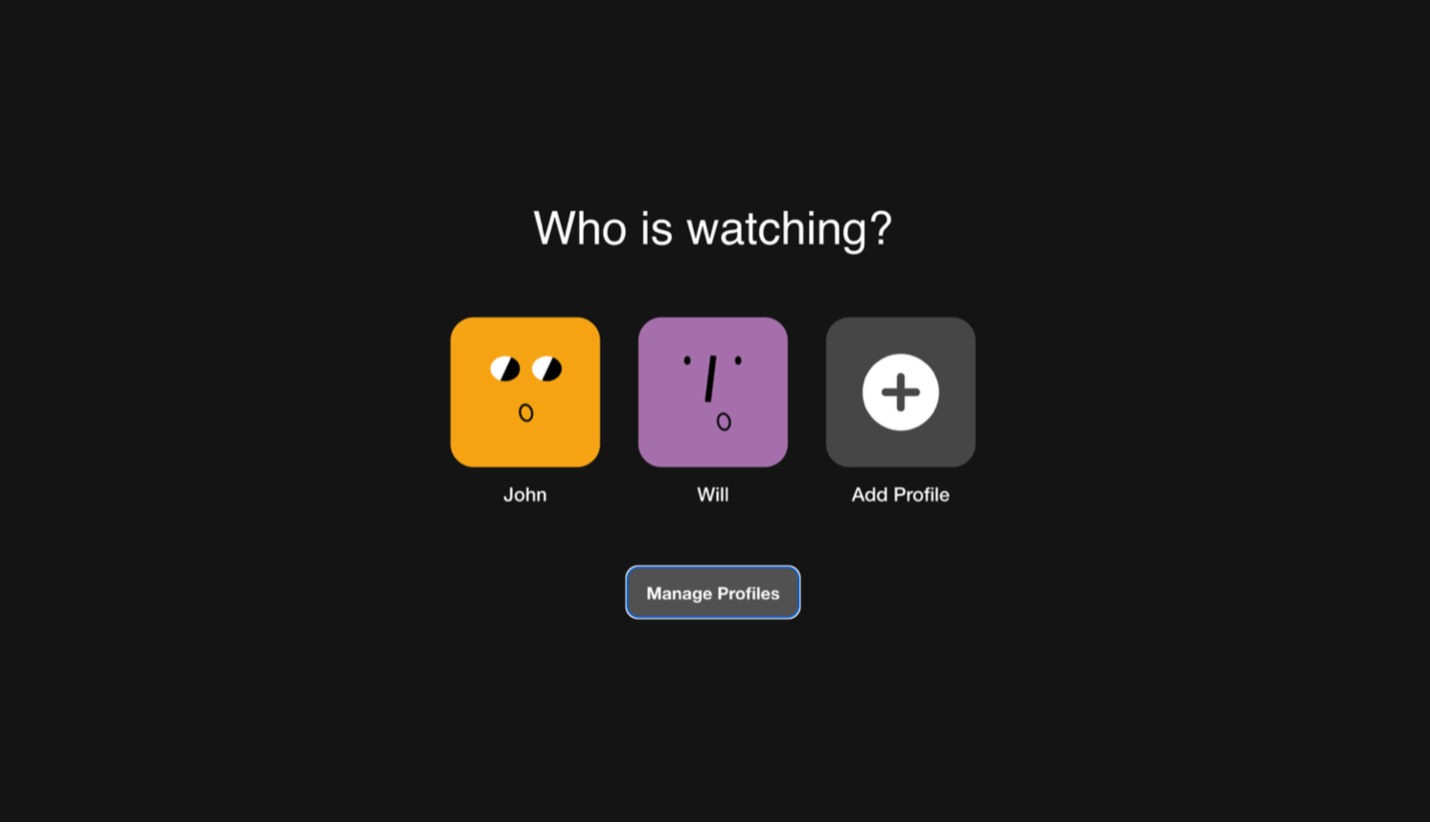
- Sign in. On the Who's watching? screen, select Add profile (the tile with the "+").
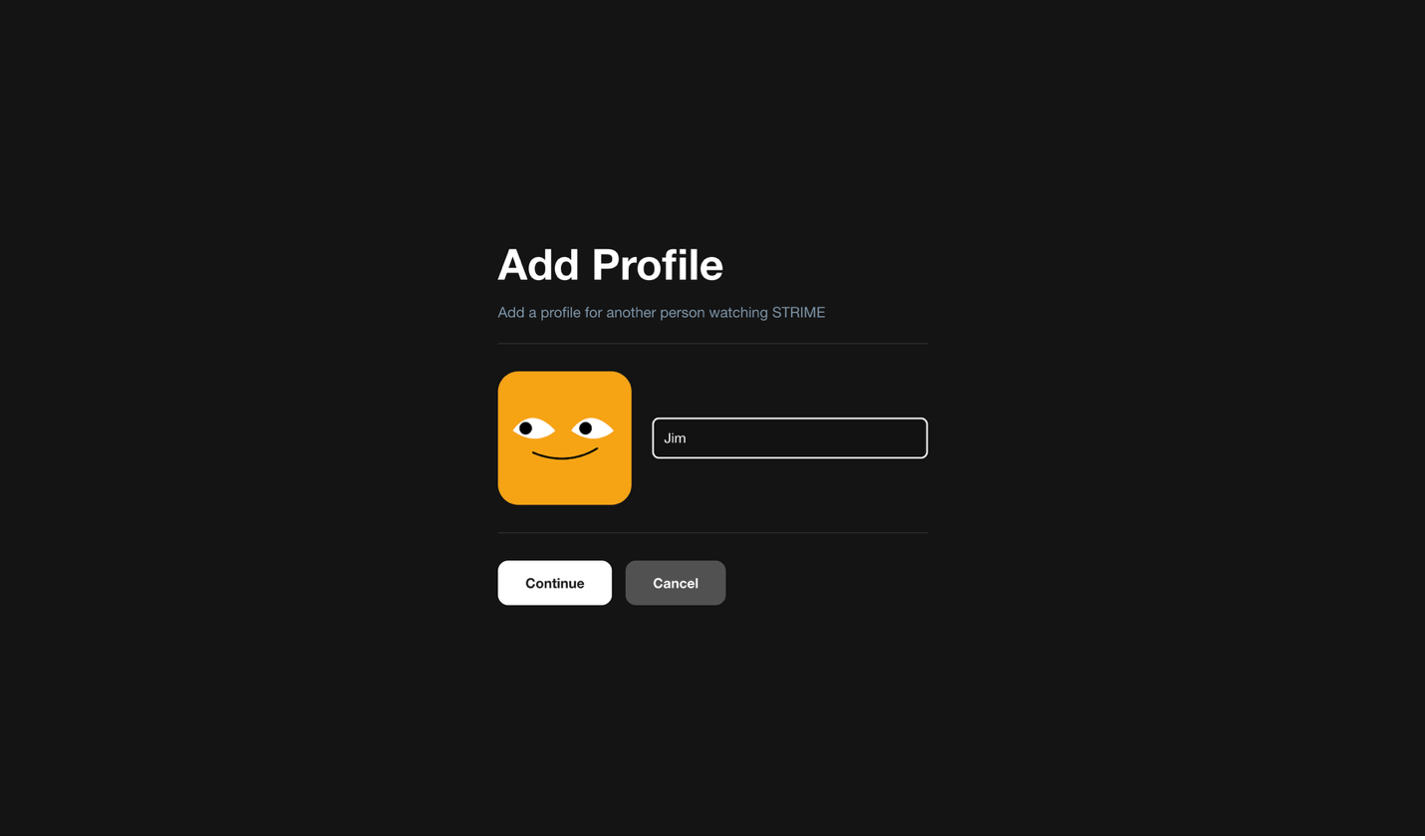
- Enter a name for the profile (up to 15 characters).
- Pick an avatar.
- Select Save. The new profile appears on the selection screen, ready to use.
Note: You can have up to four profiles per account. If you've reached the limit, delete one you no longer use before adding a new one.
How to switch between profiles
You don't need to sign out to change profiles.
- Open the profile menu (your avatar) and select Switch profile, or return to the Who's watching? screen.
- Choose the profile you want. If it's protected with a PIN, enter the PIN to continue.
How to edit or delete a profile
- From the Who's watching? screen, select Manage profiles.
- Choose a profile to rename it, change its avatar, add or change a PIN, or delete it.
- Select Save (or Delete) to confirm.
Note: The main profile can't be deleted.
How to lock a profile with a PIN
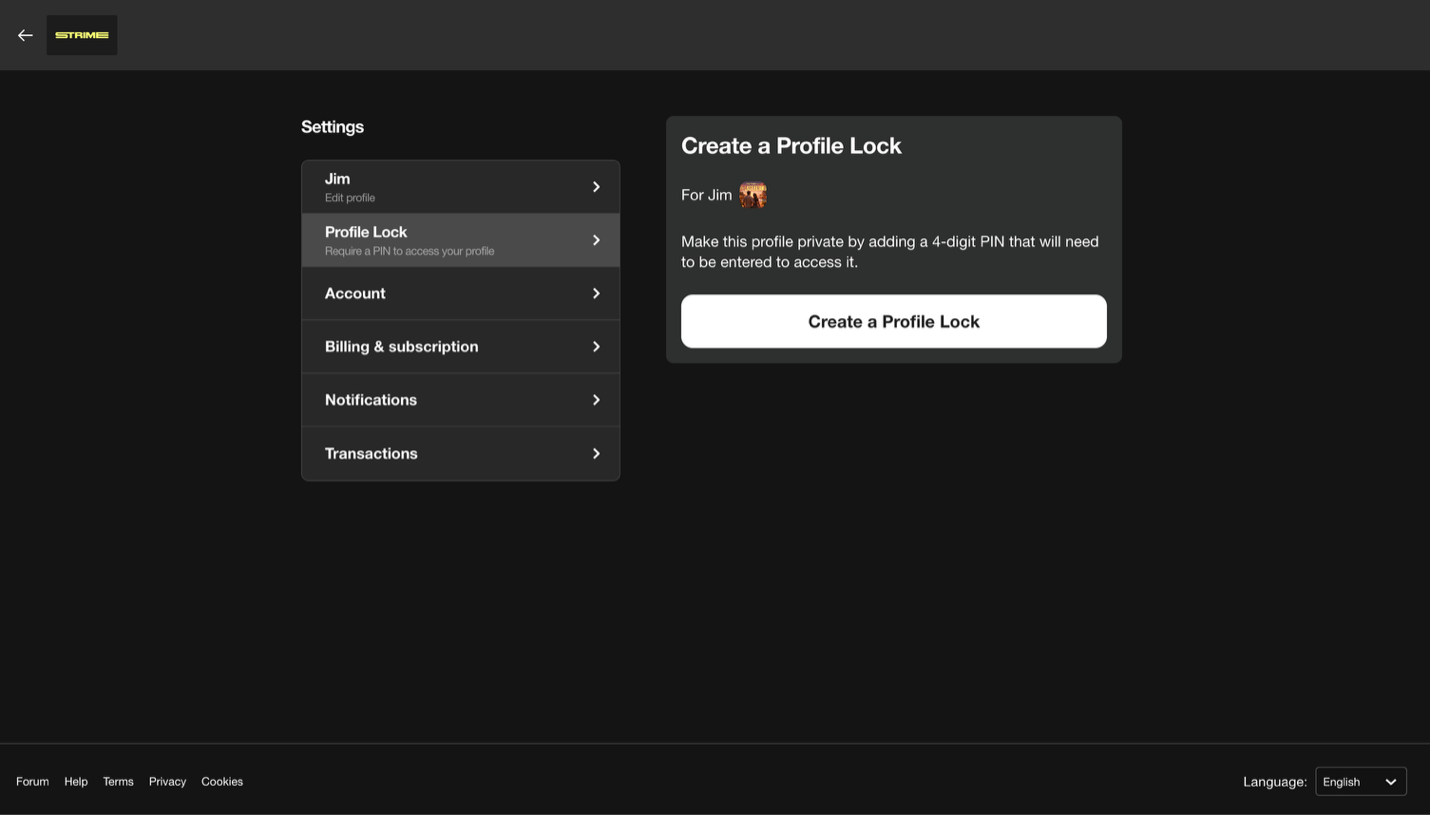
You can protect a profile with a four-digit PIN so that no one can open it without the code.
- Open the profile you want to protect, then go to Settings.
- Select Profile Lock ("Require a PIN to access your profile").
- For your security, you'll be asked to confirm it's you: we send a verification code to your account email. Enter the code to continue.
- Choose a four-digit PIN and confirm it.
- Save. From now on, anyone selecting this profile must enter the PIN first.
💡 Tip: Use a PIN on your own profile to keep your recommendations and Continue Watching private on a shared TV or device.
Using and resetting your PIN
Entering your PIN
When you select a PIN-protected profile from the Who's watching? screen, you'll be asked for the four-digit PIN. Enter it to open the profile.
Changing your PIN
Go to Settings > Profile Lock on that profile. You'll confirm your identity by email, then you can set a new PIN.
Forgot your PIN?
You won't be locked out.
- On the PIN screen, select Forgot PIN?
- We'll email a verification code to your account email address. Enter the code.
- You'll be let into the profile, and you can set a new PIN in Settings > Profile Lock.
Note: PIN setup, changes, and resets always go through a code sent to the account's email address — so keep your email up to date in your account settings.
What only the main profile can do
The main profile is the primary profile on the account (the first one, usually named after you). It's the only profile that can manage the account itself. From the main profile you can:
- View and update your subscription and plan.
- Manage payment and billing details.
- Change the account email and password.
- Manage all the profiles on the account.
Other profiles can watch and personalize their own experience, but they can't change payment or account settings. The main profile also can't be deleted.
💡 Tip: If you need to update payment or your subscription and don't see those options, switch to the main profile — that's where account and billing are managed.